
To check the bitrate of an MP3 file, open its properties on a computer, or divide its size by its length on a phone. On Windows the figure is under Properties, Details. On a Mac it is in the Music app under Get Info, File. The number tells you how the file was written. It does not tell you how good the recording was before it was encoded.
That gap matters for any MP3 made from an online video, because the sound was compressed once before the MP3 was encoded. This article shows where to read the bitrate on each system, how to work it out from size and length, and how to test whether a 320 kbps label matches the sound. What each setting means for quality is set out in the MP3 bitrate guide.
How to check MP3 bitrate on Windows
File Explorer reads the bitrate from the file itself. Checking one file takes three steps:
- Right-click the MP3 and choose Properties.
- Open the Details tab.
- Read Bit rate, listed under Audio. The same tab shows the length of the track.
A file encoded with a variable bitrate shows an average here, so the figure can be an odd number such as 187 kbps. A constant bitrate file shows one of the fixed steps, such as 128, 192, 256 or 320 kbps.
How to check MP3 bitrate on a Mac
On a Mac the Music app shows the figure. Checking a file takes four steps:
- Open the Music app and choose File, then Import, or drag the MP3 from Finder into the Music window.
- Select the song in your library.
- Choose Song, then Get Info, or press Command-I.
- Open the File tab and read the bit rate.
Players and tag tools often show a second figure, the sample rate, usually 44.1 or 48 kHz. It is inherited from the source and says nothing about how much detail was kept.
How to check MP3 bitrate on Android or iPhone
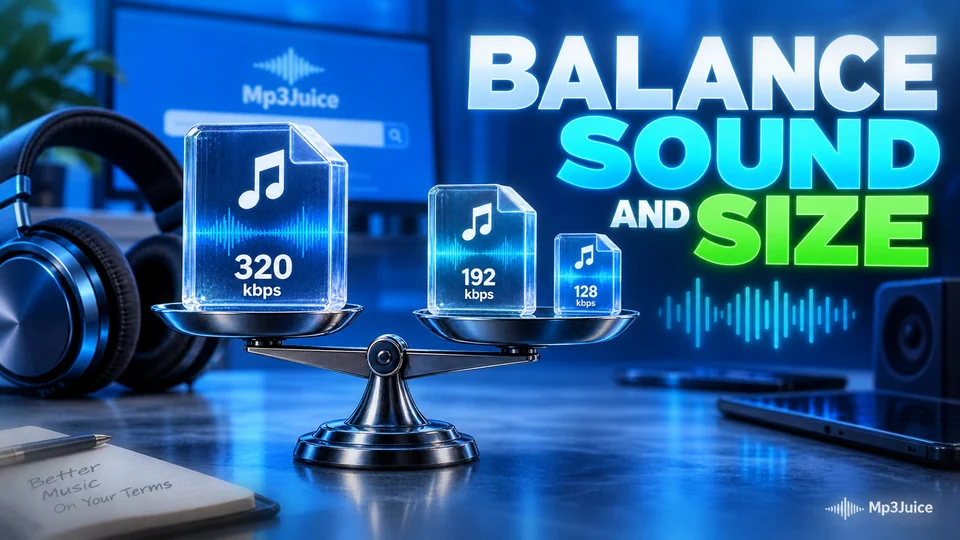
A phone's file manager shows the size of a file but usually not its bitrate, so work it out. Divide the size in megabytes by the length in minutes and find the result in the table. The table lists megabytes per minute and the size of a four-minute song at the four common MP3 bitrates.
| Bitrate | Megabytes per minute | Four-minute song |
|---|---|---|
| 128 kbps | 0.96 MB | About 3.8 MB |
| 192 kbps | 1.44 MB | About 5.8 MB |
| 256 kbps | 1.92 MB | About 7.7 MB |
| 320 kbps | 2.4 MB | About 9.6 MB |
The exact sum is the size in megabytes times 8,000, divided by the length in seconds. A 5.8 MB file that runs four minutes, or 240 seconds, comes to about 193 kbps, so it is a 192 kbps file. Cover art and tags add a little to the size. The page on MP3 file size has the figures for longer recordings.
A result that falls between two rows usually means a variable bitrate, which spends more data on busy passages and less on simple ones. The file then reports an average, as CBR vs VBR MP3 explains.
What the bitrate figure does not tell you
The figure reports how the MP3 was written. It cannot reveal the source. Anyone can save a 128 kbps recording again at 320 kbps, and the properties will then say 320 kbps. The new file is two and a half times the size and holds no extra detail.
An MP3 made from an online video is the same case. YouTube stores audio as AAC or Opus at roughly 128 to 160 kbps for most videos, so a file labelled 320 kbps that was built from it is larger, not better. The article on MP3Juice and 320kbps works through the sizes.
How to tell whether a 320 kbps MP3 is real
A spectrum view shows what the label cannot. Encoders working at low bitrates remove the top of the frequency range, and that gap survives any later re-encoding. Testing a file takes four steps:
- Open the file in a free audio editor such as Audacity, or in a spectrum viewer such as Spek.
- In Audacity, switch the track to spectrogram view.
- Look at where the picture stops. Audio from a low-bitrate source often ends sharply at around 16 kHz. A 320 kbps MP3 made from a CD reaches about 20 kHz.
- Treat the picture as a hint. A sharp cut-off well below 20 kHz points to a limited source. A full spectrum does not prove a lossless one.
Check by ear before you keep the file
Numbers and pictures describe a file. Listening tells you whether it is good enough for you. Play a busy passage on headphones. Swishing cymbals, smeared applause or a dull top end point to a weak source, which no bitrate setting can repair. Compare the file with the video it came from at the same volume, because the louder of two versions tends to sound better. The page on why a downloaded MP3 sounds different from the stream sets out a fair comparison in five steps.
If a file fails the test, a higher number will not rescue it. Look for a better upload of the same song. On MP3Juice, press Play on a result to hear it before you download, and choose the option nearest the source, which for most videos means 128 to 192 kbps.