
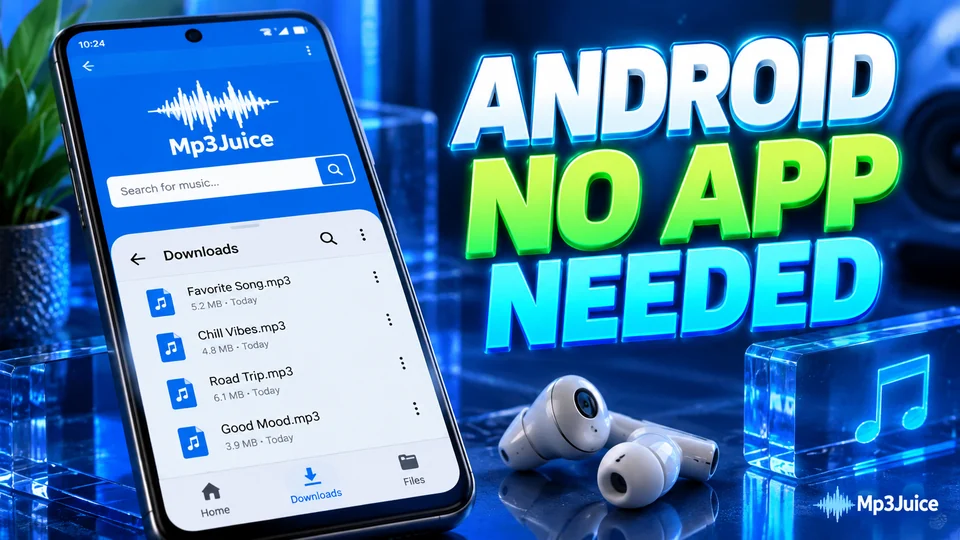
MP3Juice works on Android in Chrome: you search, tap Download, and the song is saved to the phone's Download folder with no app or APK involved. The site has no app, so there is nothing to fetch from an app store.
A browser tab cannot reach your contacts, messages or photos unless you hand them over, while an installed app can ask for broad access. This article sums up the routine in Chrome and where the song ends up, and says which prompts deserve a second look.
Why MP3Juice on Android needs no app or APK
Everything the site does happens on web pages: the search, the results, the Play check and the download panel. Chrome already knows how to save a file, so no extra software is involved.
An APK is the package file that Android apps are installed from. Because the site has no app, treat any page or advert offering an MP3Juice APK as unrelated to it. Android blocks installs from unknown sources unless you allow them for a specific app. Leave that permission switched off for your browser, and a downloaded APK gets no further than a warning.
The same routine works in Samsung Internet, Firefox and other Android browsers. This article uses Chrome because its menus are the ones most people will see. The page on MP3 download without an app says more about the browser-only approach.
How to use MP3Juice on Android in Chrome, step by step
Open MP3Juice in Chrome, search for the song, check it with Play, tap Download and then Download MP3, and pick an option. The five steps, and the copied-link route that opens a converter page, are set out on the page MP3 download on Android.
Where Chrome puts the file
Chrome saves the song to the Download folder on the phone's internal storage, and both the Files app and Chrome's Downloads list show it. The page on MP3 download on Android shows how to open and move the file, and where Android saves downloads covers other file managers and browsers.
Play the song in the app you prefer
Tapping a finished download opens it in a music app. If more than one app can play audio, Android asks which to use and offers Just once or Always. Four points help once the file is on the phone:
- The file manager's own player is fine for a quick listen.
- Samsung Music, VLC and similar players scan the phone's storage and list the song alongside the rest of your library.
- To keep things tidy, use the file manager to move songs from Download to the Music folder, which players scan. Some players scan only chosen folders.
- Press and hold a song in the file manager to rename it, share it or check its size.
If the song does not show up in your player straight away, give the player a moment to rescan, or open the file once from the file manager. The download is an ordinary MP3 file. It is not tied to Chrome, so you can copy it to a memory card, a computer or another phone. If it will not open in any player, see why a downloaded MP3 will not play.
Prompts you may see and how to answer them
Most prompts during a download are routine. A few are a reason to stop. The table lists five prompts and the answer to each.
| Prompt | What it means | What to do |
|---|---|---|
| Chrome asks for access to storage | Older Android versions need it to save files | Allow |
| Open with, and a list of apps | Android is asking which player to use | Pick a music app |
| A site wants to send notifications | Not needed for searching or downloading | Block |
| File might be harmful, on an .apk file | It is an app installer, not a song | Cancel |
| Phone not allowed to install unknown apps | An app install was attempted | Cancel, then delete the file |
The file you asked for ends in .mp3, or in .mp4 for a video. Anything else is not your song. The page on whether MP3Juice is safe to use has more on what to check.
When a download stops halfway
A dropped connection and a full phone are the usual causes. Open Chrome's Downloads list first. A paused or failed entry can often be resumed from there or from its notification. If it cannot, four steps remain:
- If resuming fails, return to the results and start again. The link to a prepared file may no longer be valid.
- Check free space under Storage in Settings. Chrome cannot finish a file it has no room for.
- Move from weak mobile data to Wi-Fi before retrying, especially for MP4.
- Try a different result for the same song. Retrying will not help with a private or age-restricted video, a live stream or a very long upload.
Problems that survive these steps are covered in the MP3 download troubleshooting guide.
A home-screen shortcut instead of an app
For one-tap access, Chrome can place a shortcut to the site on your home screen. Open the site, tap the three-dot menu and choose the entry that adds it to the home screen. Chrome words it Add to Home screen or Install, depending on the version. The icon opens the website, so the search and download steps stay exactly the same. The MP3Juice app page gives the steps in full and explains what the icon does.
None of this changes who owns the music. Download a track only if you created it, if you have permission or a licence for it, or if it is in the public domain or released under an open licence. Countries set different rules.