
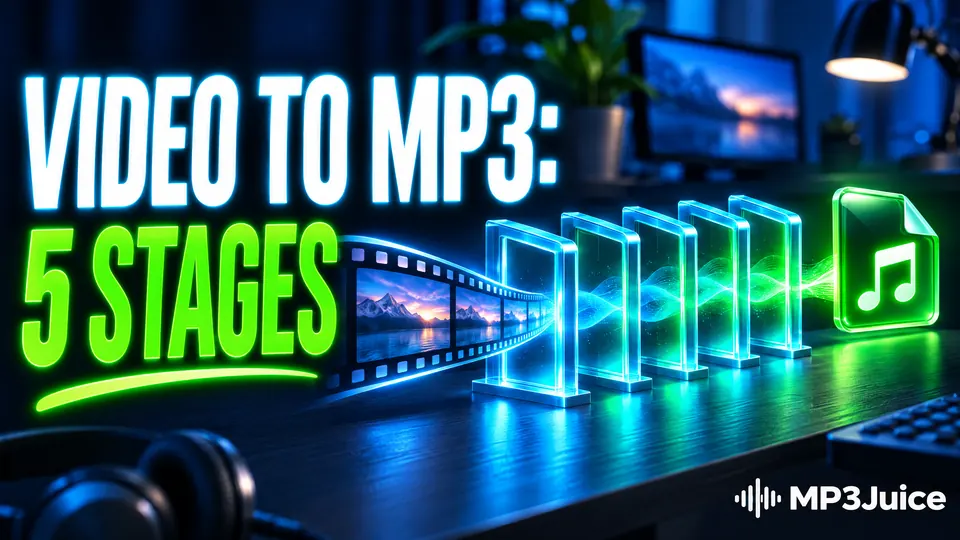
A video to MP3 conversion runs in five stages: the service locates the audio stream, unpacks it, decodes it to raw samples, encodes those samples as MP3 and delivers the file. None of the stages involves the pictures. A video already contains a finished soundtrack, and conversion writes that soundtrack out again in a different format.
Following the stages in order shows why the file has the size it has, why its quality cannot exceed the source, and where a stalled conversion has got stuck. The examples use YouTube, the source behind video to MP3 conversion on this site, where the work is carried out by an external conversion service.
The five stages at a glance
A video to MP3 conversion has five stages:
- Locate: the service reads the video's details and finds its audio stream.
- Unpack: the compressed audio is lifted out of its container.
- Decode: the compressed audio becomes raw samples.
- Encode: an MP3 encoder compresses those samples again.
- Deliver: the MP3 is written to a file and sent to your browser.
Only the fourth stage changes the sound. The first three recover what the source already contains, and the fifth is packaging. The MP3 converter page describes the same step from the user's side: what conversion changes and what it cannot.
Stage 1: locating the audio stream
A YouTube link points to a page, not to a file. The service first requests the video's details: its title, its length and the list of streams available. YouTube stores sound and picture as separate streams, so there is normally an audio-only stream ready to fetch, encoded as AAC or Opus. Taking that stream alone means moving a few megabytes instead of the whole video.
This is also the first place a job can fail. If the video is private, age-restricted, blocked in the region the request comes from, or still being broadcast live, no usable stream comes back and the conversion ends here. The cases are set out in why some YouTube videos will not convert.
Stage 2: unpacking the container
Audio streams travel inside containers. AAC normally sits in an MP4 container and Opus in WebM. A container is packaging: it holds the compressed audio in small packets, with timestamps and a header that states the codec, the sample rate and the number of channels. Unpacking, called demuxing, reads those packets out in order. Nothing is recompressed, so nothing is lost.
Copying the packets straight into an .mp3 file is not possible. An MP3 file can hold only MP3 data, so AAC or Opus audio has to be decoded and encoded again. The two source formats are compared in YouTube Opus vs AAC.
Stage 3: decoding to raw samples
The decoder turns each packet back into PCM, the uncompressed form in which audio is a plain list of numbers. Stereo PCM at 48 kHz and 16 bits runs at 1,536 kbps, so a four-minute song briefly becomes about 46 MB of data inside the service.
That size is not a gain in quality. The decoder rebuilds only what the compressed stream describes, and whatever YouTube's encoder discarded stays discarded, as explained in how YouTube compresses audio. Two small adjustments can happen here. If the MP3 is to use a different sample rate, for example 44.1 kHz instead of 48 kHz, the samples are resampled. If the source has more than two channels, they are mixed down to stereo. Neither adds detail.
Stage 4: encoding the MP3
The MP3 encoder works through the samples in frames of 1,152 samples, about 26 milliseconds each at 44.1 kHz. For every frame it splits the sound into frequency bands, uses a model of human hearing to estimate what will be masked, and rounds off the rest until the frame fits the bitrate. That rounding is the lossy part.
The bitrate you choose applies to this stage only. It sets how much data each second of the new file may use, which makes the size predictable: 192 kbps for four minutes comes to about 5.8 MB. It does not describe the source. A higher setting lets the encoder add less damage of its own, but past a moderate figure the extra megabytes buy nothing you can hear. The MP3 bitrate guide compares the settings.
Stage 5: tags, file name and delivery
The frames are written one after another into a file. An MP3 can also carry ID3 tags, a block of data that holds the title, the artist and cover art, as the page on what an MP3 file is describes. Whether a converted file has them depends on the service. Many arrive with little more than the video title as the file name, and you can fill in the tags later in a music player or a tag editor.
MP3 encoding also leaves a few hundredths of a second of silence at the start of each file, a by-product of the way frames overlap. On a single song you will not notice it. It is the reason albums that run without pauses can have a tiny gap between MP3 tracks. The service then offers the file to your browser, which saves it like any other download, normally in the Downloads folder.
Where a video to MP3 conversion slows down or stops
The encoding itself is quick. Audio is small, and a server can encode a song in a fraction of its playing time. Delays usually have one of five other causes:
- the service is busy and your job waits in a queue
- the video is long, so there is more to fetch and more to encode
- the source stream arrives slowly, or the temporary link to it expires part-way
- your own connection drops while the finished file is downloading
- the video is restricted, so no stream was available in the first place
A finished file should match the video's length and have a plausible size for its bitrate. If it is far shorter, or only a few kilobytes, the transfer was cut off and running the conversion again is the fix. Both routes, MP3 and MP4, are set side by side in YouTube audio and video conversion. For a video file that is already on your device, the same stages run in a program on that device, as the page on how to convert video to MP3 shows.