
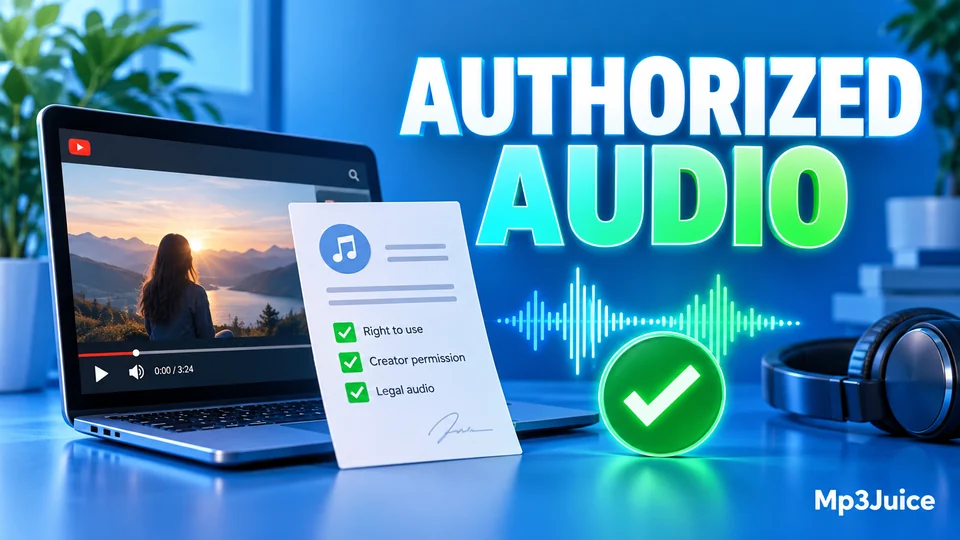
A YouTube video carries an open licence only when its description shows a Creative Commons Attribution licence. Every other video is under the Standard YouTube licence, the default for all uploads, which gives you no right to reuse it. This article is about authorised audio: recordings you made, recordings you hold a licence or permission for, and recordings in the public domain or under an open licence.
The order matters. Check the rights, convert, then keep a note of what you checked. Rules differ by country, so read this as a practical routine and not as legal advice. The rule itself is set out on the page about whether MP3Juice is legal.
What counts as authorised audio
Four kinds of recording qualify:
- Your own work. A song, talk, rehearsal or podcast episode that you recorded and uploaded yourself.
- Licensed or permitted material. A track you have bought a licence for, or one whose rights holder has told you in writing that you may download it.
- Open-licence material. A video its owner has published under a Creative Commons licence that allows reuse.
- Public-domain material. A recording whose copyright has expired or been waived under the law where you live.
Anything else needs permission before you save it. Being able to watch or share a video does not grant that. A song usually carries two sets of rights, one in the composition and one in the recording, so the word of an uploader who merely re-posted a track settles nothing. For a podcast episode, the feed usually offers the file directly, as podcast to MP3 explains.
Age alone is a poor guide to the public domain. A new recording of a centuries-old piece is protected as a recording even though the composition is free to use, and the terms differ between countries. Typical cases are worked through in MP3Juice and copyright.
How to read the licence on a YouTube video
Open the video on YouTube and expand the description. YouTube has two licence types. When the uploader has chosen the open one, the description shows a licence line that names the Creative Commons Attribution licence. That is the CC BY licence: you may reuse the work if you credit its creator. A video without that line is under the Standard YouTube licence, so permission has to come from the owner in some other form. To look for open-licence videos directly, run a search on YouTube, open the filters and choose Creative Commons.
The label is set by the uploader. YouTube does not allow it on a video with a Content ID claim, but the label alone is not proof of ownership. A chart single re-uploaded by a fan account and marked Creative Commons has not become free to reuse. Check that the channel belongs to the artist, label, lecturer or institution that made the recording. An official channel that matches the artist's own website is better evidence than a label alone. For recorded lectures, the page on how to download lecture recordings lists which recordings may be saved.
Permission that is not a licence should be a plain statement from the rights holder. Look for a line in the description, a pinned comment from the channel itself, or a page on the artist's own site that offers the download. If you find none, ask, and wait for the answer in writing.
Convert the authorised video to MP3 in four steps
Copy the address of the video you have checked. The YouTube app keeps it under Share, then Copy link. Converting from that link takes four steps:
- Open MP3Juice in your browser and paste the link into the search field, or press Paste to fill it from your clipboard.
- Press Search. The converter page opens for that one video.
- Compare the title and the channel with what you checked on YouTube, and play the preview if you are unsure.
- Under Choose a format, select MP3, then take one of the options the conversion service offers.
When the browser has saved the file, play it through once. The YouTube to MP3 converter page shows the same route screen by screen. Pasting the link is more dependable than searching by title here. A title search can return someone else's copy of the same song, and your permission covers one specific upload.
Format and quality you can expect
The download options come from an external conversion service, and MP3Juice does not host the file. Which qualities are listed is down to the source video and to that service. Some videos produce no options at all. Private videos, videos restricted by age or region, live streams and very long recordings are the usual cases.
Expect the sound of the YouTube stream and nothing more. YouTube stores audio as AAC or Opus, at about 128 to 160 kbps for most videos. Choosing 320 kbps for the MP3 adds megabytes and no detail. If you are the creator and need full quality, export from your original project instead of converting your own upload. YouTube Studio also lets you download your own videos, and its Audio Library offers music for use in videos as MP3 files. Both routes are described under how to download MP3 from YouTube.
Keep a record of the permission
The licence setting on a video can be changed later, and a video can be taken down. Note what you saw on the day you converted. A text file stored next to the MP3 is enough. Record four things:
- the title of the video and the name of the channel
- the full YouTube link
- the licence line, or the wording of the permission
- the date you checked
A Creative Commons Attribution licence also asks for credit when you reuse the work in public, for example in a video or a podcast. The usual form names the title, the author, the source link and the licence. Private listening needs no credit line, but the note costs nothing to keep.
After the download
The MP3 lands in your browser's download folder, and no player imports it for you. The article on downloaded music on every device shows where to find it and how to move it into a library.
Results removed after a copyright notice are no longer shown on MP3Juice, and the copyright policy explains how a rights holder can ask for a removal. If a video you had permission to use later disappears from YouTube, your note of the link and licence is the only record left.